How to configure the integration and import loads to Triumph Rate Intelligence
From the menu, go to Integrations > Partner Integrations. Select “Triumph Rate Intelligence” and click Add

- Enter your integration ID name provided by Triumph
- Enter API integration Client Secret Key provided by Triumph
- Select Yes to enable the Target Rate mapping to Triumph Rate Intelligence Target Rate (Low buy rate x distance)
- Select Yes to enable the Max Buy Rate mapping to Triumph Rate Intelligence Max Buy Rate (Total Rate)
- Select “Yes” to move integration to production, or “No” to test only
- Set status to “Active” to enable, or “Disable” to disable the integration
- Set a label to distinguish multiple integrations
- Save changes – this should saved first upon initial configuration before step 7
- Bulk import loads after initially enabling integration
- Time stamp of when the last bulk import was triggered and uploaded
Upon first enabling the integration, the Bulk Import button can be used to import all loads in Booked status and greater to Greenscreens. The time stamp will log a successful import with the date and time.

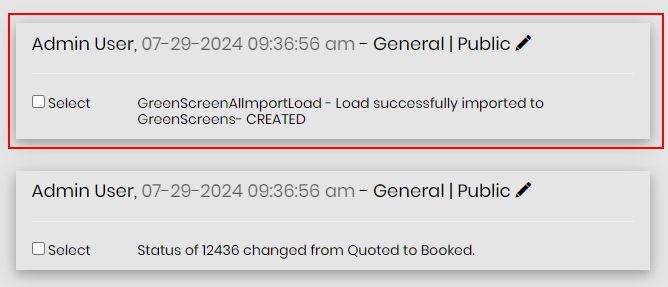
After the initial bulk upload. Any new loads created will also be imported automatically to Greenscreens once it is in Booked status. You will see a Greenscreen shipment note that says “CREATED”
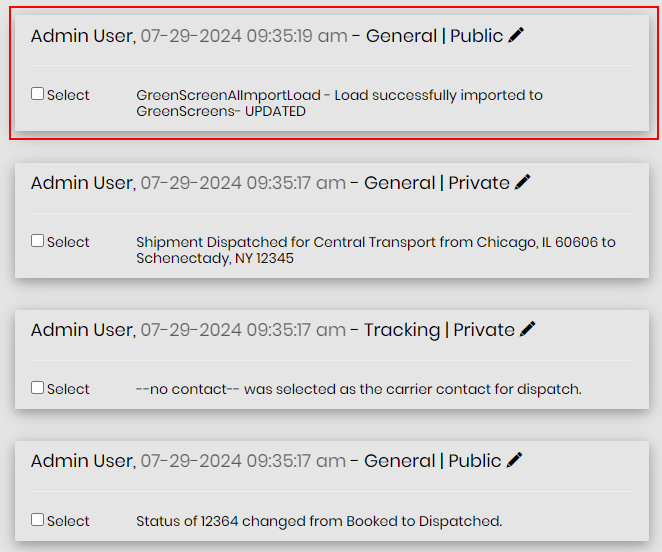
For any loads that have been already uploaded to Greenscreens, whether from the bulk import or created when the load was booked, they will update to Greenscreens when the shipment status is changed. You will see this shipment note as “UPDATED”